
How to Create a Vado Page for Your Business: The Complete Step-by-Step Guide
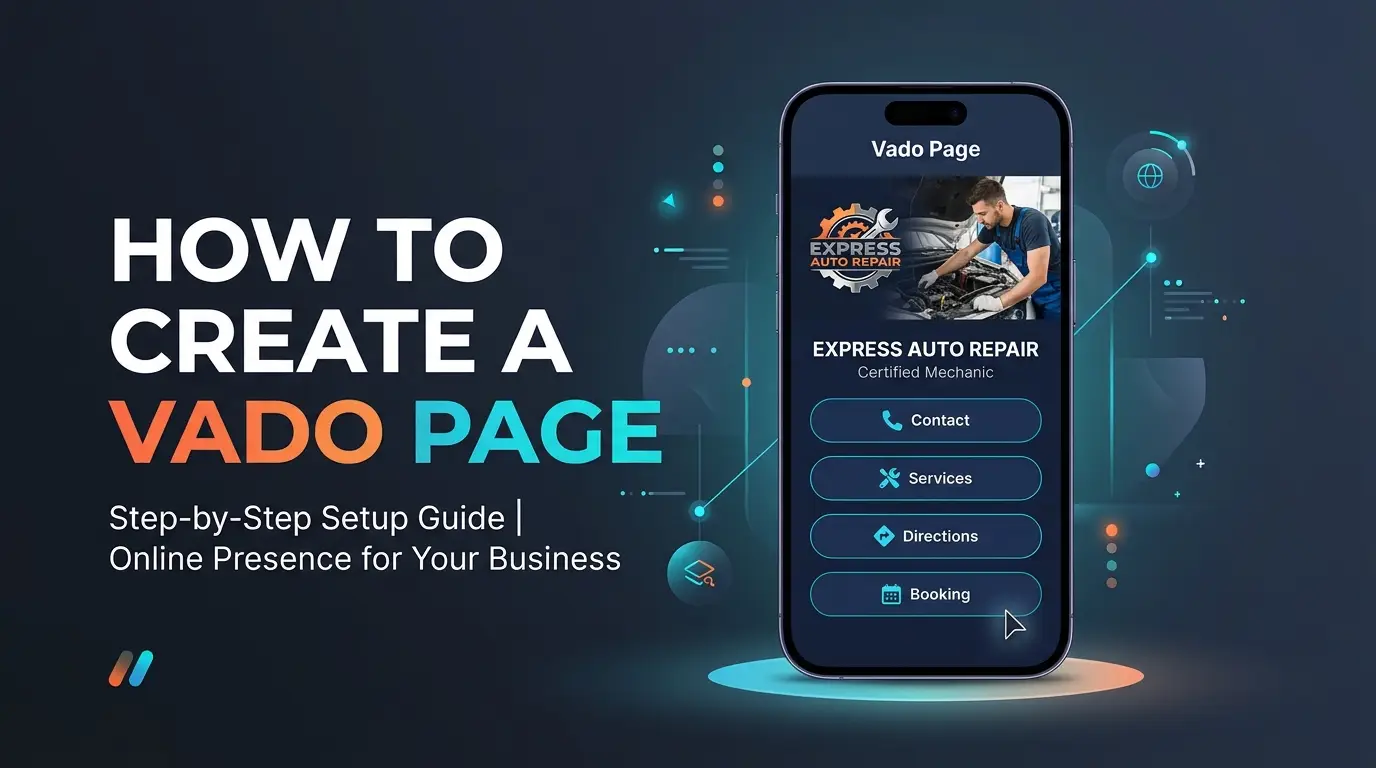
Follow this step-by-step guide to create a Vado Page for your business and add the information your customers need to understand what you offer. You’ll learn how to showcase your products and services, add social links and contact information, display photo galleries and customer testimonials, set your business hours, configure appointments, and customize your page.
You’ll also learn how to share your Vado Link with customers after your page is live.
You can create and manage your Vado Page directly from your phone in minutes. No coding skills are required.
Step 1: Sign In to Your Vado Account
- VisitVado.ngand sign in to your account.
- If you don’t have an account yet,create your Vado account here.
- After signing in, open your dashboard to get started.
Step 2: Create Your Vado Page
From your dashboard, locate the option to create a Vado Page and start the creation process. You’ll be asked to provide some basic information about your business and choose how your page should look.
Complete the Vado Page Creation Form
Fill in the following details:
- Business Type:Select the category that best describes your business.
- Theme:Choose a theme for your Vado Page.
- Language:Select your preferred language.
- Cover Type:Choose how you want your cover area to appear. Options include Default, Photo, YouTube, YouTube Autoplay, Vimeo, and Vimeo Autoplay.
- Profile Image:Upload your business logo or a suitable profile image.
- Title:Enter your business name or the name you want displayed on your Vado Page.
- Personalized Link:Choose the personalized link for your page.
- Subtitle:Add a short line describing your business.
- Description:Explain what your business does and what customers can expect.
Important:Choose your Personalized Link carefully. Once your Vado Page is created,you cannot edit this link. Check your spelling and make sure it represents your business before completing the creation process.
Review your information and save the form to create your Vado Page.
Step 3: Complete Your Basic Details
After creating your page, open the page settings and locateBasic Details. On your phone, you may need to scroll down the dashboard to find the relevant settings.
Complete the business information requested in this section. Use accurate details and clear descriptions so customers can understand your business without having to ask you for every piece of information.
Keep your business name, description, and other details consistent with how you present your business on WhatsApp and your other platforms.
Step 4: Add Your Social Links and Contact Information
Your Vado Page can bring your important business contact details and online channels together in one place.
OpenSocial Links and Contact Infoand add the relevant details for your business, such as:
- TikTok
- X (Twitter)
- Phone number
- Email address
- Business address
- Google Maps
- Google Reviews
- YouTube
- Website link
- Iframe content
Add the links and contact details that are relevant to your business. Check each link to make sure it directs customers to the correct destination.
Your WhatsApp contact is particularly useful if you want customers to move from browsing your Vado Page to making an enquiry directly with you. If you already have a website, you can also add its link here so customers can visit it from your Vado Page.
Save your changes when you’re done.
Step 5: Add Your Payment Links
ThePayment Linkssection lets you display payment information for customers. Open the section and select the payment option you want to configure:
- Default Payment Option:Enter yourPayment Label(the name customers will see) andCustom Details(additional payment instructions).
- UPI Payment Option:Enter yourPayment LabelandUPI ID.(Note: UPI is primarily an Indian instant-payment system. Nigerian businesses should use this option only when they have a valid UPI payment arrangement relevant to their customers).
- Link Payment Option:Enter yourPayment LabelandPayment Link(for example, a valid OPay payment link if you use OPay to receive payments).
Choose labels that customers can easily understand, such as “Make a Payment” or “Pay via OPay.” Make sure the payment details and links are correct before saving.
Step 6: Add Your Services
If your business provides services, use theServicessection to explain what you offer. Open Services and add a service using the available fields:
- Image:Upload an image representing the service.
- Name:Enter the service name.
- Description:Explain what the service includes.
You can also enable or disable theEnquiry Buttonfor the service, allowing interested customers to contact you directly. Choose a clear, relevant image and write a helpful description.
Save the service after completing the details. To edit or delete a service later, locate it in the list and use the three-dot menu underAction. Repeat this process for your other services.
Step 7: Showcase Your Products
TheShowcase Productssection lets you display selected products on your Vado Page. Open the section and add a product:
- Image:Upload a clear product photo.
- Name:Enter the product name.
- Description:Describe the product and its important details.
- Badge:Add a suitable badge where relevant.
- Currency:Select the currency for the displayed price.
- Regular Price:Enter the regular price if you want to display one.
- Sales Price:Enter the sales price (this field is required).
- Stock Status:Set the product's stock status.
Check the product name, image, price, and stock information before saving. To edit or delete a product, use the three-dot menu under Action beside the product.
When Should You Use Vado Store?
Showcase Products is useful when you want to feature selected products on your Vado Page. If you sell physical products and need a dedicated storefront with product categories and a more organized WhatsApp ordering experience, useVado Store.
Step 8: Add Photo Galleries
Use theGalleriessection to show customers more of your work, products, business premises, or completed projects. Open Galleries and select+ Add, then:
- Upload an image.
- Enter a caption describing the image.
- Save the entry.
Use clear, relevant photos that represent your business accurately. For example, a fashion business can display completed outfits, a beauty business can show its work, and a restaurant can showcase its meals.
Step 9: Add Customer Testimonials
Customer testimonials can help new customers understand other people's experiences with your business. OpenTestimonialsand add the following details:
- Reviewer Image:Upload the reviewer's image where appropriate.
- Name:Enter the reviewer's name.
- Subtext:Add a short description where relevant.
- Review:Enter the customer's feedback.
Save the testimonial after completing the fields. Always use genuine customer feedback and obtain permission before publishing a customer's name, photo, or review.
Step 10: Configure Your Popups
Your Vado Page includes popup settings that you can configure from thePopupssection. The available settings include:
- Enable Newsletter Popup
- Enable Information Popup
When you enable theInformation Popup, you can configure the following fields:
- Image:Upload an image for the popup.
- Description:Enter the information you want to display.
- Button Text:Choose the wording for the popup button.
- Button URL:Enter the destination customers should visit when they click the button.
- Confetti Effect:Configure the confetti effect.
Use the Information Popup to communicate something useful, such as an announcement or promotion. Save your settings when you finish.
Step 11: Set Your Business Hours
Use theBusiness Hoursection to tell customers when your business is open:
- Display Business Hours Section:Enable this option to display your business hours on your Vado Page.
- 24/7 Open:Enable this option if your business operates around the clock.
If your business does not operate 24/7, configure the opening and closing times for the relevant days of the week. Check the schedule carefully before saving.
Step 12: Configure Appointments
If customers need to book appointments with you, configure theAppointmentsection:
- Appointment Email:Enter the email address for appointment notifications.
- Slot Duration:Set the appointment duration (maximum slot duration is60 minutes).
- Time Slot:Configure your available appointment times from Monday to Sunday.
Set your appointment availability according to your actual schedule so customers can choose suitable times. Save your settings when you’re done.
Step 13: Set Up Your Contact Form
TheContact Formgives customers another way to send enquiries through your Vado Page:
- Display Contact / Inquiry Form Section:Enable this option to display the form on your page.
- Contact / Enquiry Form Email:Enter the email address where you want to receive form enquiries.
Save your settings and test the form to confirm that it is displayed correctly and enquiries reach the intended email address. Use an email address you check regularly.
Step 14: Configure Service Booking
If your business offers services that customers can book, configure theService Bookingsection:
- Display Service Booking Section:Enable this option to display the service booking section.
- Notification Email:Enter the email address for booking notifications.
- Display Days:Select the days you want to make available.
- Start Time:Set the beginning of your booking availability.
- End Time:Set the end of your booking availability.
Make sure your booking schedule reflects the times you can actually attend to customers. Save your settings after completing the configuration.
Step 15: Configure Your Advanced Settings
OpenAdvanced Settingsto configure additional options for your Vado Page:
SEO Settings
- Favicon:Add the small icon associated with your page.
- Meta Title:Enter a descriptive title for your page.
- Meta Description:Write a concise summary of your business.
- Meta Keywords:Add relevant keywords describing your business.
- Custom CSS & JS:Configure custom styling or scripts if you have the technical knowledge.
Enable PWA
The Enable PWA setting allows your Vado Page to be available as an installable web app. PWA is available on all Vado plans, including the Free plan, and it is enabled by default.
Password Protection
It is disabled by default. To protect your page, enable the option and set a password. Only use password protection when you intend to restrict access to your page.
Save your advanced settings after making your changes.
Step 16: Customize Your Section Titles
Your Vado Page lets you customize the titles displayed for different sections. OpenSection Titlesand adjust the labels to suit your business:
| Default Section Title | Suggested Title |
|---|---|
| Social Links | Connect With Us |
| Payment Links | Payment Options |
| Services | What We Offer |
| Products | Our Collection |
| Gallery | Our Work |
| Testimonials | What Our Customers Say |
| Business Hours | Opening Hours |
| Appointment | Book an Appointment |
| Contact Us | Get in Touch |
| Service Booking | Book a Service |
Save your changes after customizing the titles.
Step 17: Review Your Intro Screen
Open theIntro Screensettings and review the available options. Select and configure an intro screen if you want to use one to provide a great first impression.
Step 18: Review Your Vado Page
Before sharing your Vado Link, open your page and review it as a customer would:
- Your business name, profile image, and description are correct.
- Your contact details and WhatsApp link work.
- Your social links lead to the right accounts.
- Your services and showcase products display correctly.
- Your product prices and stock status are accurate.
- Your galleries and testimonials are displayed properly.
- Your business hours are correct.
- Your appointment and booking settings are configured as intended.
- Your payment links direct customers to the correct destination.
- Your page is easy to navigate on a mobile phone.
Correct any mistakes you find before sharing your page with customers.
Step 19: Share Your Vado Link
Once your Vado Page is ready, share your Vado Link wherever customers can find your business:
- WhatsApp chats and groups
- Your WhatsApp Business profile
- Instagram, Facebook, TikTok, and other social platforms
- Email signatures
- Business cards and flyers
- QR codes
- NFC cards
Instead of repeatedly typing out your business information, direct customers to your Vado Page so they can browse your offerings all in one place.
Step 20: Connect a Custom Domain
Your Personalized Vado Link gives your business a shareable online address. If you want to use your own domain name instead, a custom domain is available on eligible Vado plans to make your branding look even more professional.
Follow this guide to connect your domain:
🔗"How to Link a Custom Domain to Your Vado Store or Vado Page"
Manage Your Vado Page From Your Phone
You don't need to sit in front of a computer every time you want to update your business information. You can create and manage your Vado Page directly from your phone—updating details, adding services and products, changing photos, and reviewing your page on the go.
Frequently Asked Questions
1. Do I still need a website if I have a Vado Page?
A Vado Page gives your business a professional online presence where customers can find important information and take action quickly. It doesn't replace your existing website, but if you have one, you can link it directly in your Social Links section.
2. Can I create a Vado Page with my phone?
Yes. You can create and manage your Vado Page entirely from your mobile device.
3. Do I need coding skills to create a Vado Page?
No coding skills are required. The dashboard is designed to be straightforward and user-friendly.
4. Can I edit my Vado Page after creating it?
Yes, you can update your information at any time. However,your Personalized Link cannot be editedonce your page is created, so choose it carefully.
5. Can I add my products and services to my Vado Page?
Yes! Use the Services section for what you offer and Showcase Products to feature specific items. For a full storefront with categories and ordering workflows, use Vado Store.
6. Can customers contact me through WhatsApp?
Yes, you can seamlessly add your WhatsApp contact information and custom buttons so customers reach you directly.
7. Can I display my prices on my Vado Page?
Yes, prices can be clearly displayed under Showcase Products and mentioned within your service descriptions.
8. Can I use my own domain name?
Yes. Custom domains are supported on eligible Vado plans.